How to Start a Faceless YouTube Channel Today: Just Your Phone, NeoPodcast and Optional AI

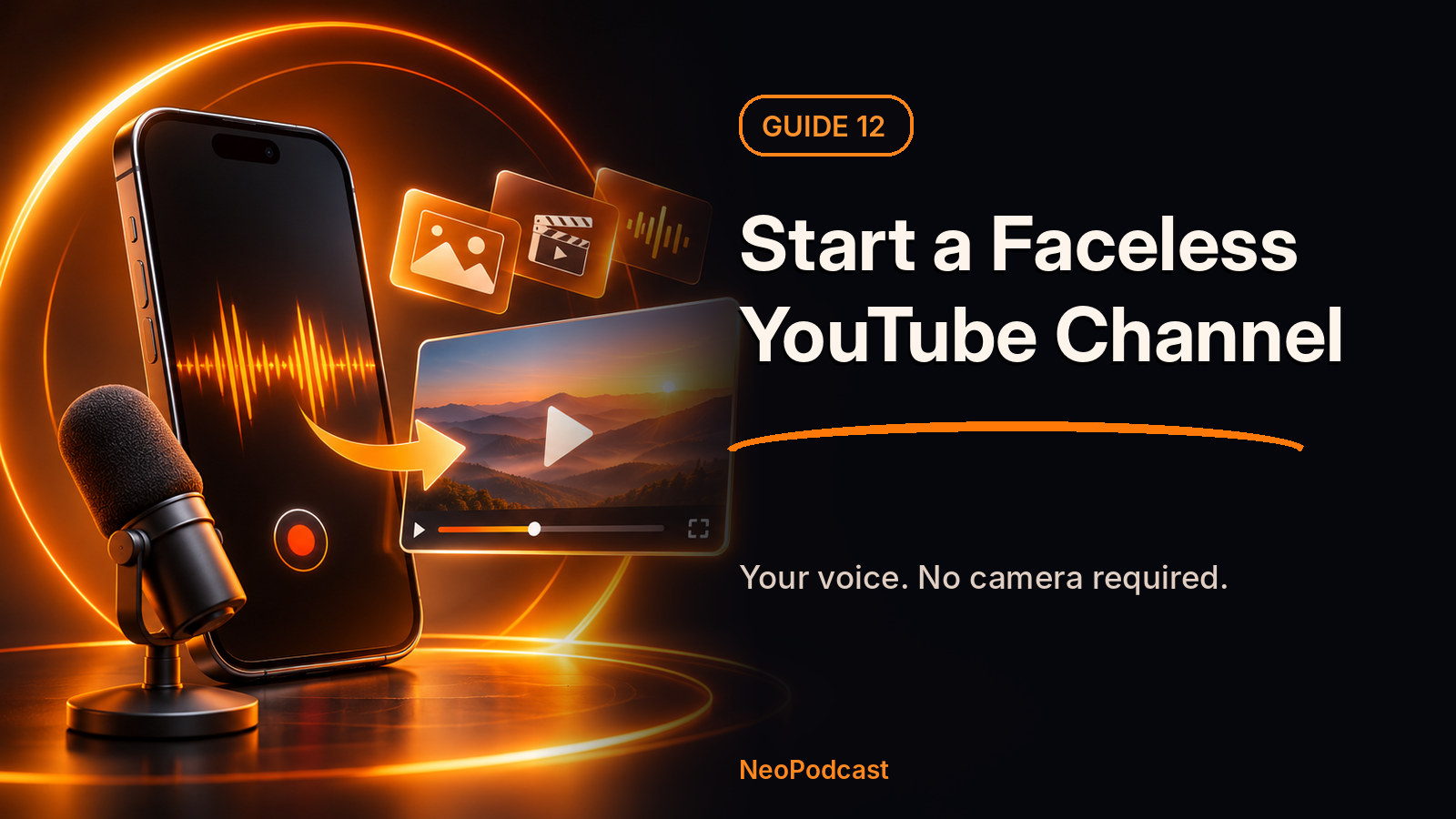
You want to launch a YouTube channel, but you don't want to film yourself. Perhaps you have expertise to share, stories to tell or ideas worth explaining. Good news: your own voice can be the main character. You can launch an audio-first YouTube channel today with a smartphone, and you can add animated visuals later without recording the episode again.
The simplest route uses NeoPodcast to record, edit, transcribe and publish the voice-led episode, then YouTube's RSS import to turn your podcast audio into a video with your show cover. The more visual route adds optional motion graphics designed with Claude and rendered with a separate tool. Those are two different levels of production—not steps you must finish before publishing.
What is a faceless YouTube channel?
A faceless YouTube channel is a channel in which you share videos without appearing on camera. Your content might use a voice-over, slides, original illustrations, animated captions, diagrams, screen recordings, or licensed footage. It does not have to mean anonymous, automated or AI-narrated. You can use your own voice and identify yourself as the creator if you wish.
This format works particularly well for explainers, history, learning, business commentary, reviews, storytelling, interviews and topical analysis. Hands-on tutorials sometimes need screen or object footage, but they still don't require a talking-head shot.
What you need (and what you don't)
| Essential to launch | Optional upgrades |
|---|---|
| A smartphone with a working microphone | A lavalier or USB microphone |
| A quiet space and one topic | Better room treatment |
| NeoPodcast to record and publish a voice-led episode | Claude Pro for storyboards and code-based visuals |
| A Google account and YouTube channel | Desktop rendering software for custom motion graphics |
| A title, description and cover image | Custom animation, captions and visual identity |
You can start with a phone and NeoPodcast; Claude is optional. As of November 2026, Anthropic lists Claude Pro at US$20/month when billed monthly, excluding local taxes where applicable. Pro includes Claude Code but has usage limits; a $20 subscription does not include unlimited video production or third-party rendering services. See Anthropic's pricing and Claude Code documentation.
Step 1: choose a narrow channel concept
Don't begin with a vague theme such as "technology" or "travel." Start with a question a specific person might search for:
- "How can beginners understand an electricity bill?"
- "What does a product manager actually do?"
- "How did this forgotten historical event happen?"
- "Three useful tips for caring for indoor plants."
A focused first episode gives you an understandable title, a natural opening and an achievable finish. Create a simple outline: the problem, three points, and a conclusion. Your first episode can be just five to ten minutes.
Step 2: record on your phone in NeoPodcast
Find a quiet, soft-furnished room. Put the phone near your mouth without touching it. Silence notifications, record a short test and listen for air conditioning, traffic or echo.
Open NeoPodcast on your phone, record your voice or import an existing voice memo, and speak through your outline. If you stumble, pause and repeat the sentence; you can edit afterward. On supported devices, NeoPodcast creates a transcript and lets you review the episode. The iOS version documents on-device transcription; features can vary across platforms and app versions.
A human voice with a helpful explanation is a stronger starting point than obsessing over studio-quality production. For microphone options, see our DJI Mic Mini recording guide or the existing start without expensive equipment article.
Step 3: edit the words and publish an audio episode
Read the transcript and listen to the final edit. Cut a confusing false start, an irrelevant detour or a repeated explanation. Keep normal breathing and natural pacing. Apply noise reduction or loudness leveling only when helpful; heavy processing can make a voice sound metallic.
Write a title that describes the promised answer, a short summary and accurate show artwork. In NeoPodcast, publish your episode to get a podcast RSS feed and an individual episode page. The public website currently offers the first three published episodes free.
That RSS feed is also your easy path to YouTube. You're not required to produce a separate movie before you test the idea.
Step 4: launch on YouTube without creating a video yourself
YouTube has an official audio-podcast RSS workflow. In eligible countries, it creates a static-image video for each selected audio episode, using your show's cover art. This is an actual YouTube video, but it is not a custom animated explainer.
- Create or sign in to your YouTube channel and open YouTube Studio.
- Choose Create → New podcast → Submit RSS feed, where available.
- Copy your NeoPodcast RSS URL from the app's distribution guidance and paste it into YouTube.
- Verify ownership using the email associated with your podcast feed.
- Choose whether to import old episodes, episodes after a date or only future episodes.
- Wait for the imported episodes to finish processing, review copyright and metadata, then publish the podcast from Content → Podcasts.
After connection, new episodes in the feed can be imported automatically. The initial import may require time and manual publication; do not assume the show is public until you complete YouTube's publishing step. YouTube's RSS option is limited by location and account eligibility. Official instructions: Connect and publish a podcast RSS feed.
When this is enough
If your audience primarily wants a thoughtful explanation, interview or story, a static-art video can be a perfectly sensible first version. You'll have an actual channel and a repeatable publishing routine. Later, you can improve your most successful episodes with visuals rather than animating everything before you know what resonates.
Step 5 (optional): add visuals with Claude Pro and motion design
Want diagrams to appear as you speak, animated key figures, title cards or a scene for each chapter? Claude Opus 5.5 can help create a storyboard and write animation code. It does not itself directly render a finished MP4. A renderer—such as a Remotion project, browser animation captured to video, or another suitable video tool—must actually turn the code into a video file.
The practical workflow is:
- Export or copy your reviewed transcript from NeoPodcast, with available chapter boundaries or timing information.
- Ask Claude for a scene-by-scene plan that highlights visual moments—not a visual for every sentence.
- Request animation code for a renderer you can use. Specify 16:9, 1920 × 1080, readable text, restrained motion and your visual identity.
- Render an MP4 using the chosen tool. Claude Code typically needs a desktop or hosted development environment for this step, so this advanced workflow is not necessarily smartphone-only.
- Keep the original episode audio as the soundtrack; watch the video from beginning to end and check scene timing, spelling, facts, image rights and subtitles.
- Upload your custom MP4 using YouTube Studio. On supported app versions with an eligible paid plan, you can also attach the file to the NeoPodcast episode for private storage and export. That does not publish it to YouTube or replace an existing YouTube video.
If your episode is already imported from RSS as a static-image video, take care to avoid duplicate public episodes. Decide whether to keep the audio-first version or publish a separate visual explainer and link between them.
Copy this prompt to start your visual storyboard
I have a finished, factual, spoken podcast episode. My aim is a
faceless YouTube explainer, not a talking-head video.

Using the attached reviewed transcript and the actual timestamps:
1. Identify 5–8 moments that benefit from original visual explanation.
2. Produce a timestamped storyboard with on-screen words, diagrams,
   scene duration and transitions.
3. Use a consistent 1920x1080 visual style with large readable type.
4. Keep the audio unchanged and align animation with the audio timeline.
5. Write working animation code for [my chosen renderer] and a clear
   render/export procedure. Do not claim the video is rendered if it isn't.
6. Flag claims, assets and quotes that need fact or rights checks.
Avoid made-up data, fabricated footage and copyrighted characters.
Step 6: help your channel get found
Give each video an honest, searchable title. Put the specific answer near the start of the description, then add a link to the public NeoPodcast episode and transcript page. Use chapters when they add useful navigation. A good thumbnail should describe the topic visually even at a small size.
YouTube search and recommendation systems take many signals into account; no title formula guarantees views. Test topics, look at click-through and audience retention in Studio, and improve based on what real viewers watch. For web discovery beyond YouTube, a readable episode transcript gives search engines a public text version of the discussion. See podcast SEO with transcripts.
If you use AI to create realistic-looking synthetic or significantly altered scenes, review YouTube's disclosure requirements. Use only visuals and music you have rights to publish.
FAQ
Can I start a faceless YouTube channel with just a phone?
Yes. Record and publish an audio-first podcast on your phone, then connect its RSS feed to YouTube where the feature is available. YouTube creates static-cover videos. Custom motion graphics require extra production steps.
Do I need Claude Pro to start?
No. Claude Pro is an optional way to create storyboards and code-based animation projects, not a prerequisite for a channel. Your phone, NeoPodcast and a YouTube account are enough for the audio-first route.
Does the $20 Claude subscription include AI-generated footage?
Not as a blanket entitlement. Claude can plan scenes and generate animation code; rendering, stock assets or third-party generative video may involve separate tools, usage limits and charges.
Can I change an existing static-image YouTube episode to a custom video?
YouTube does not generally replace the actual video file in place. Plan whether the custom version will be a separate upload or whether you will use an available re-upload workflow; keep an eye on duplicate titles and audience confusion.
Is a faceless channel automatically eligible for monetization?
No. YouTube evaluates eligibility and original value under its current policies. Show genuine editorial effort, accurate information and lawful assets, not mass-produced filler.
Your first video can begin as your first voice memo
You don't need to become a presenter, buy a camera or learn motion graphics before publishing something worth hearing. Record in NeoPodcast, publish the episode, connect your feed to YouTube, and improve the visuals later if they actually help the viewer.
Download NeoPodcast for your phone — record, edit and publish your first three podcast episodes for free, then take your voice-led content to YouTube.
Related guides: Start a podcast easily today · How to publish a podcast on YouTube · Turn audio into a motion-design video · Start a podcast or YouTube channel without showing your face
Sources and further reading
- NeoPodcast app downloads and free-episode offer
- YouTube Help: deliver podcasts using an RSS feed
- YouTube Help: connect and publish a podcast RSS feed
- YouTube Help: create a podcast in Studio
- YouTube Help: disclose realistic AI-generated content
- Anthropic: Claude pricing
- Anthropic: Claude Code with Pro